Use the right sign-in for Microsoft Ads.
Resolve an identity mismatch when your Microsoft Advertising account uses Google.
 Adsfast guidesUpdated November 26, 2026
The same email address can represent different identities. Microsoft Advertising expects the identity type originally linked to your advertising account, so a successful Microsoft login can still produce an account-discovery error.
Check how you normally sign in to Microsoft Advertising: with a personal Microsoft account, a work account, or Continue with Google.
1Match your usual sign-in method
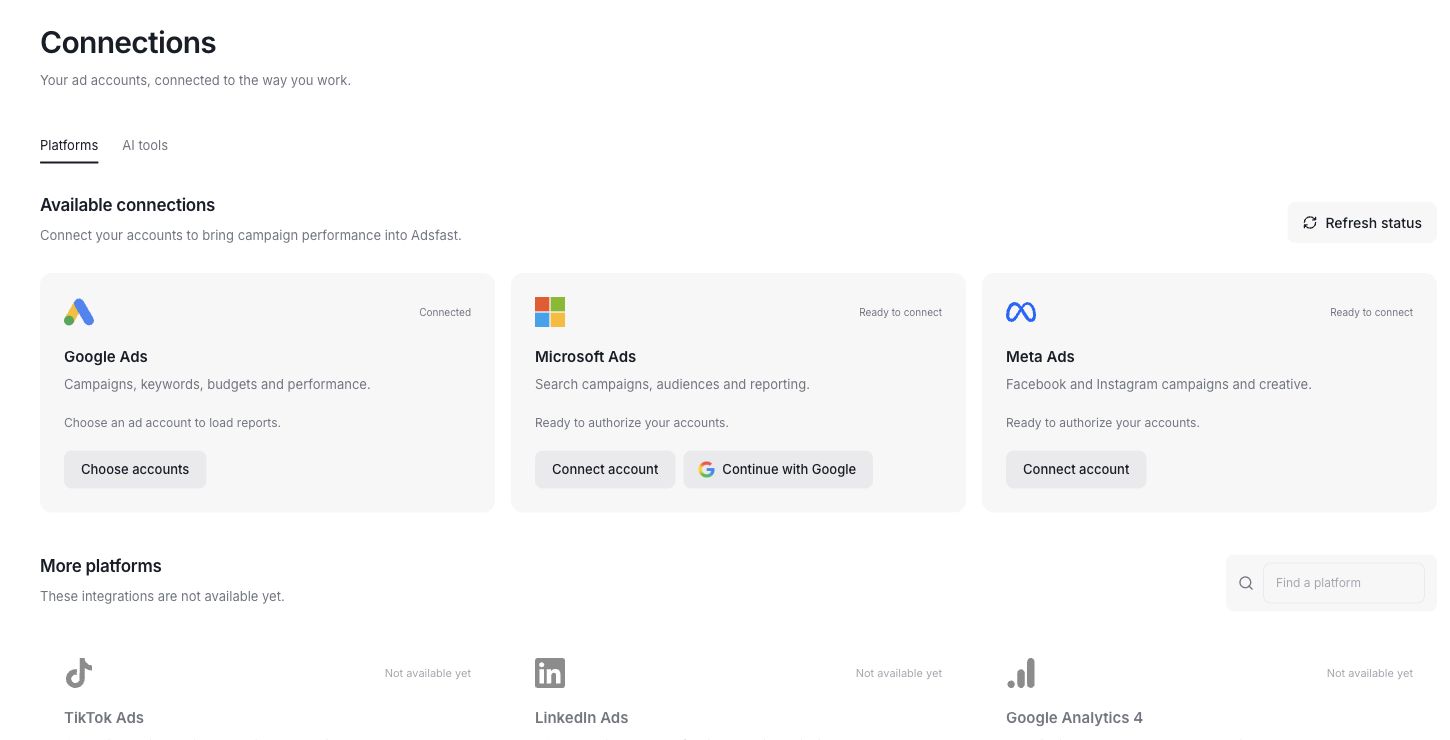
Open Connections. If you normally use Google for Microsoft Advertising, choose Continue with Google on the Microsoft Ads card. The standard Connect account button starts Microsoft sign-in.
For an existing connection, open its account modal and expand Connection settings to change the sign-in method. An identity-mismatch message also offers Google recovery when configured.
2Complete authorization
Choose the correct Google or Microsoft account and complete the provider’s authorization flow. A Google identity is used to authenticate Microsoft Advertising access; it does not turn this connection into a Google Ads connection.
If your usual identity still cannot discover accounts, check your access in Microsoft Advertising. A developer token does not grant access to accounts you cannot otherwise use.
3Select your advertising account
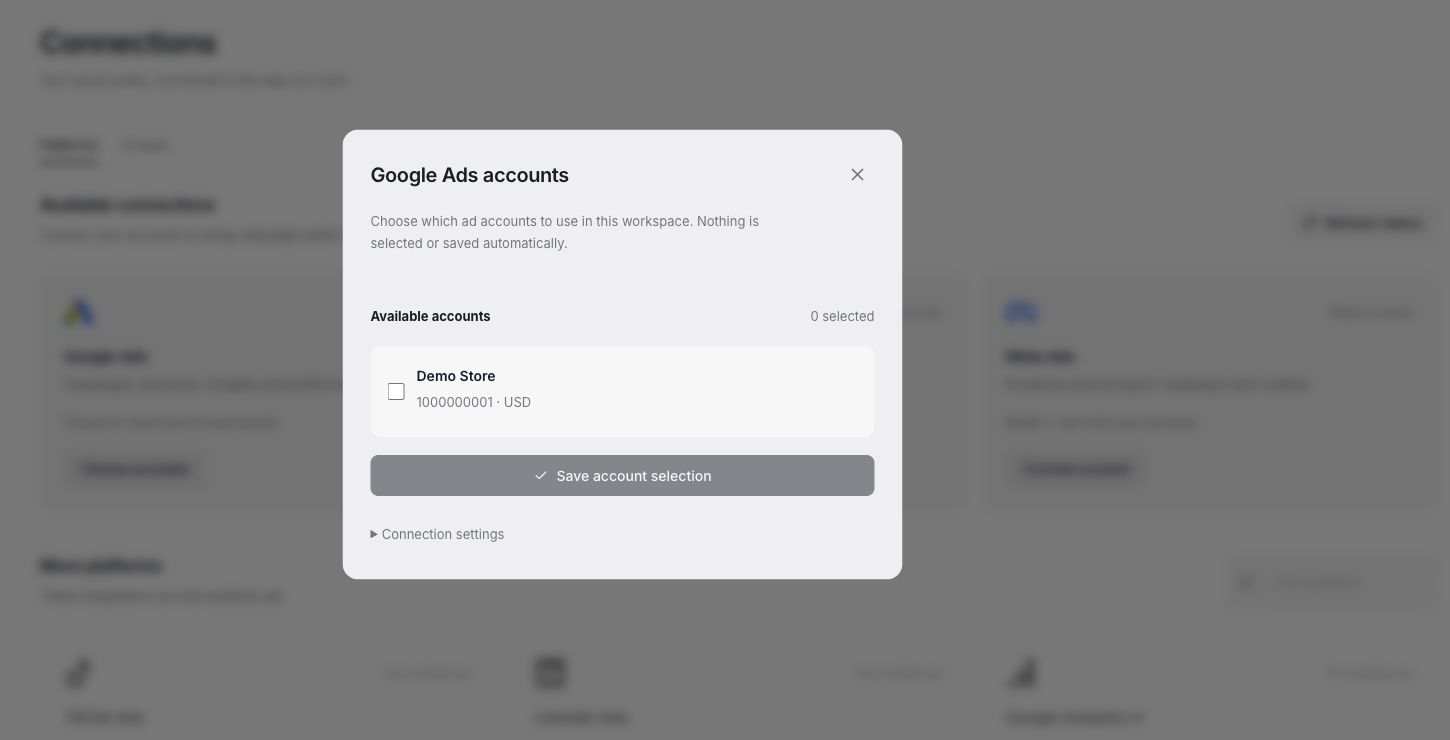
After authorization, Adsfast opens the account picker. Select your account and save your choice before requesting a report. Nothing is checked on your behalf.
An empty list is different from an authentication error. Confirm your account membership instead of repeatedly authorizing a different identity.
Ready for your own workspace?
Use the identity already linked to your advertising account, then choose your accounts yourself.
Try it in AdsfastKeep exploring



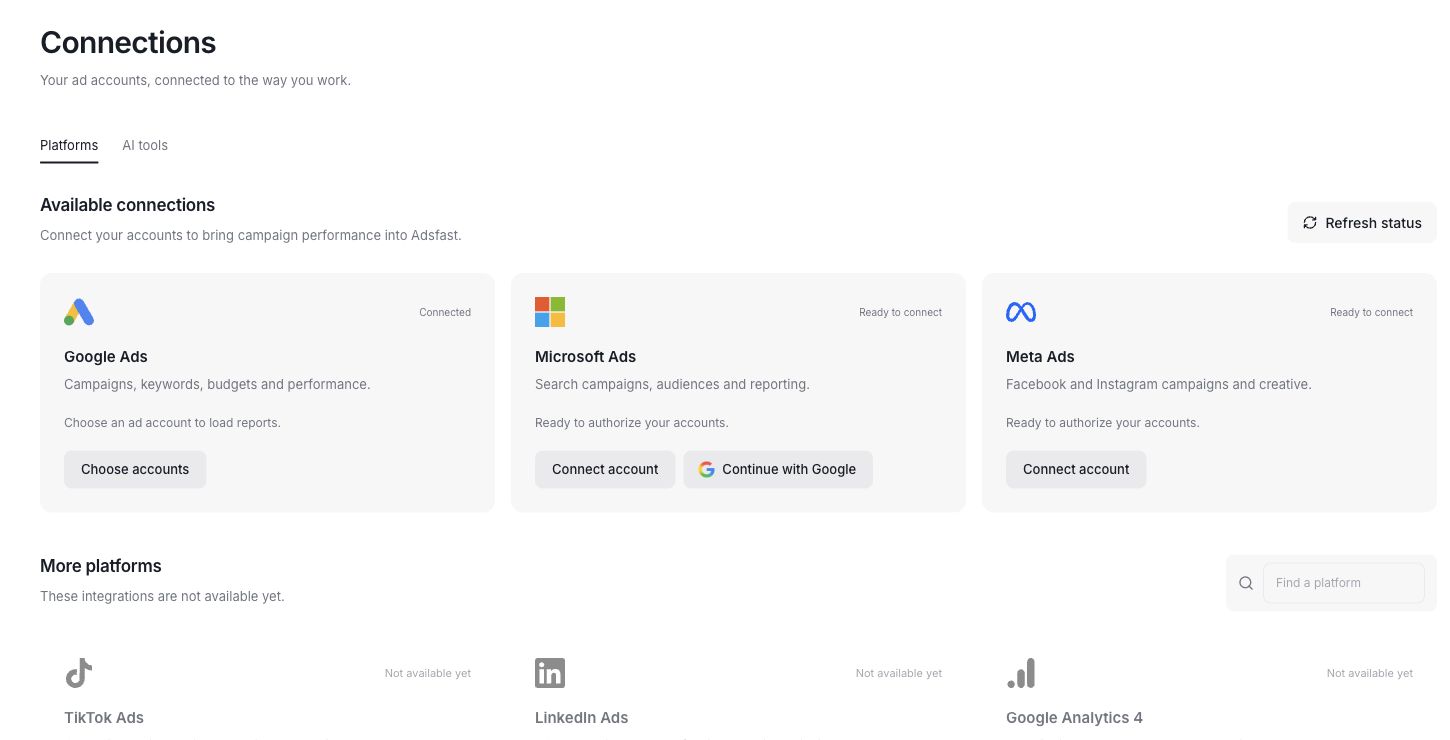
Connect your accounts. Choose your data.
Authorize a platform, select accounts yourself, and bring a report into your dashboard.

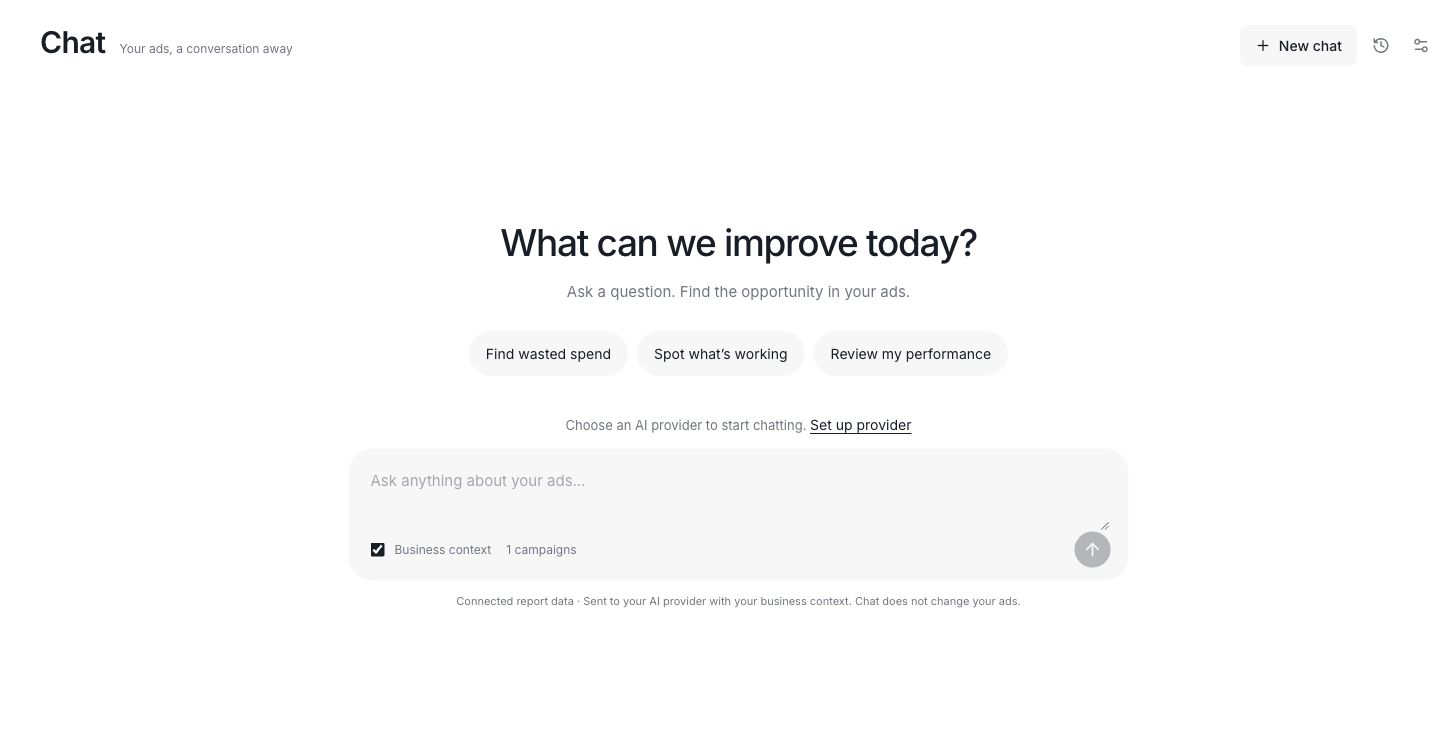
Your first conversation about your ads.
Choose an AI provider, add your own API key, and ask a focused question about your campaign data.
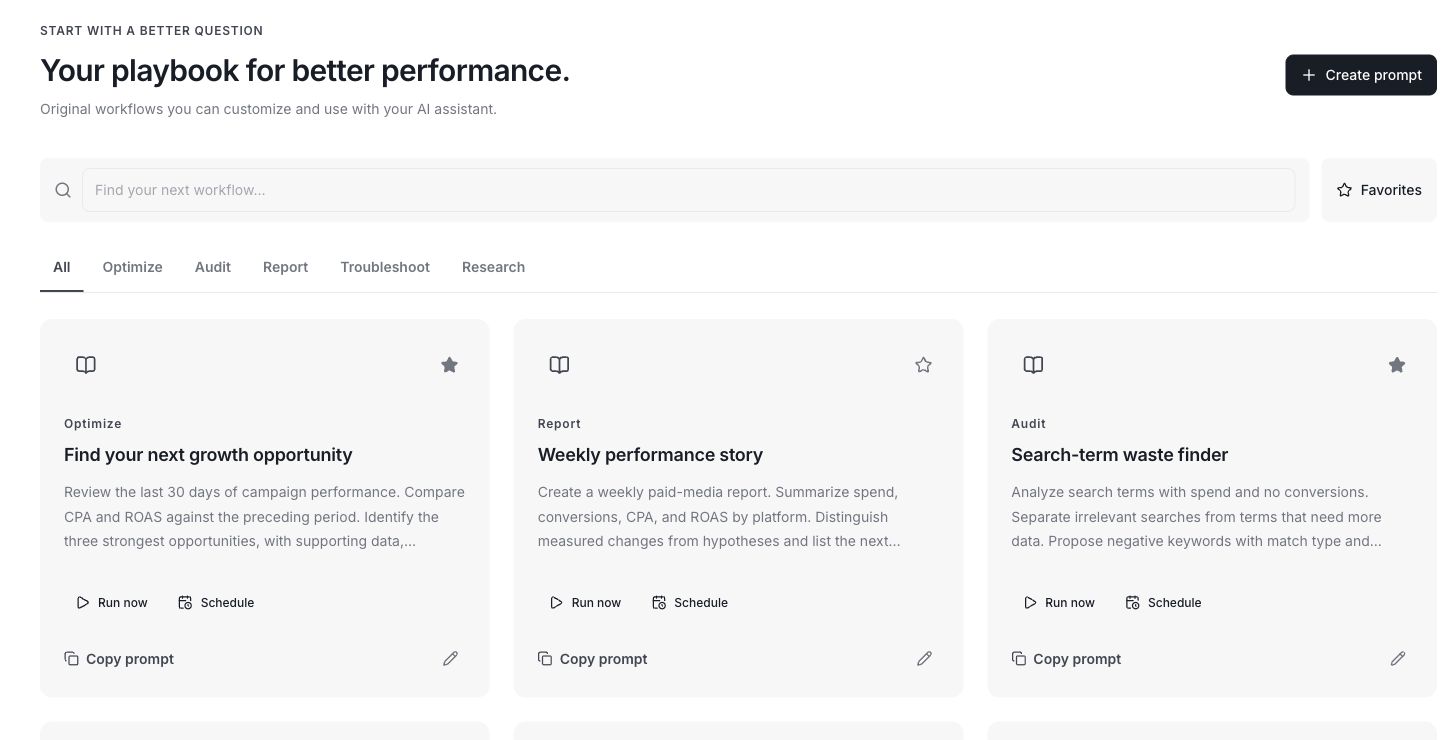
Turn a good question into a reusable prompt.
Customize your library, run a prompt once, or send it to the scheduler.